

This article is a written account of a video from the Lens Of James YouTube channel. Watch the video above and subscribe if you like what you see!
This article contains affiliate links to relevant products I have used in my videos. By buying through these links, I receive a small percentage of the sale at no cost to you which helps me support and grow my website and YouTube channel, so I can create more content like this in the future. Thank you for your support.
Introducing the Akiyo O1 Mini Projector
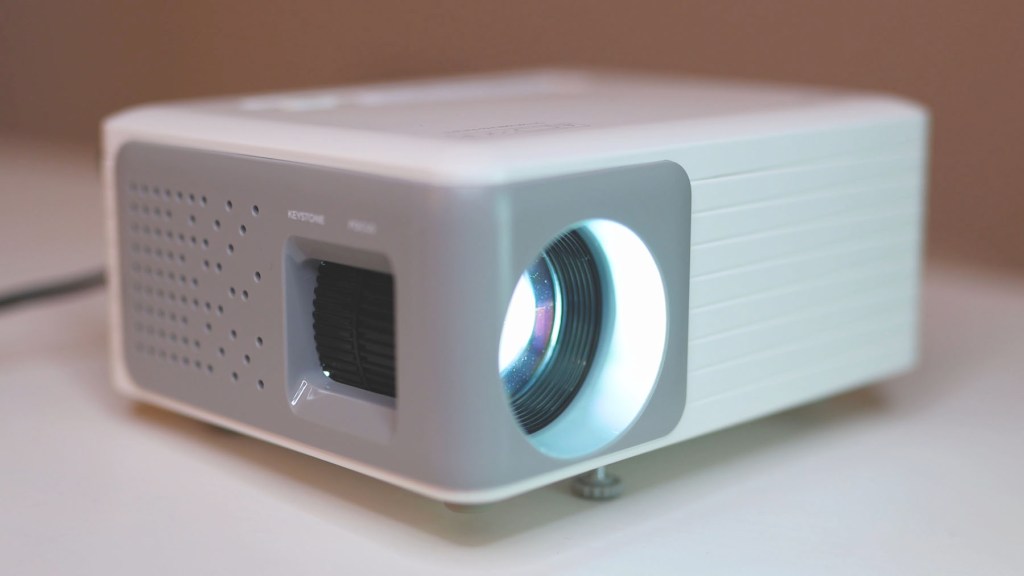
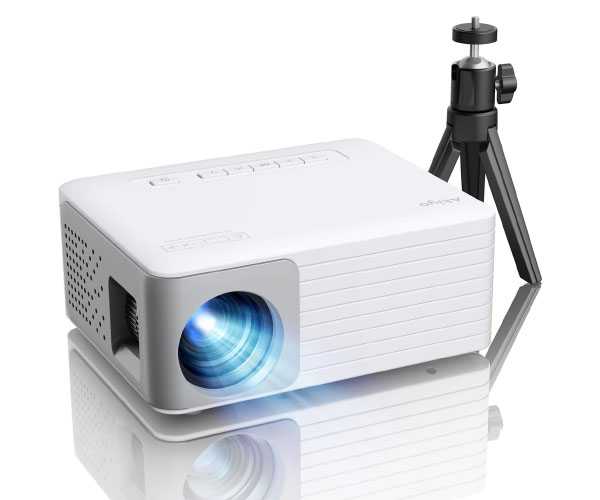
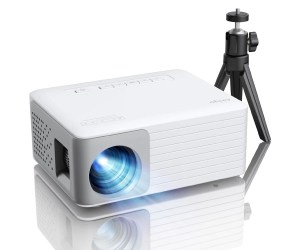
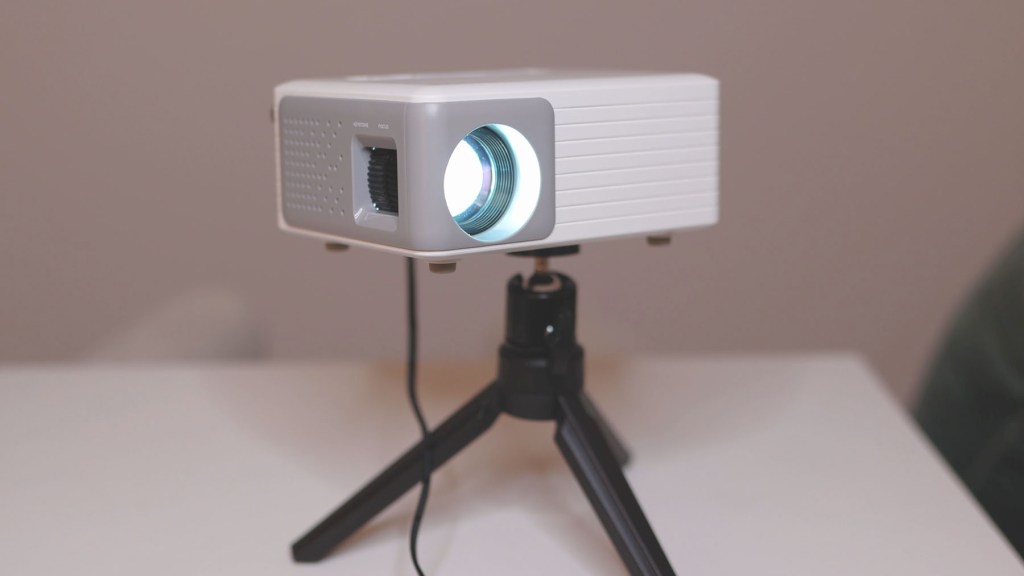
This is the Akiyo O1; a mini projector which is compact and portable, boasting 720 HD native playback and support for up to full HD footage, with a brightness of 7,500 lumens. It’s tiny, fitting in the palm of your hand, and looks like someone has shrunk down a traditional projector, making it perfect for travel, setting up an outdoor cinema or kitting out a man cave.

But don’t be fooled by its size the O1 packs a punch and puts a home cinema experience at your fingertips, and the best bit it is only costs £50!
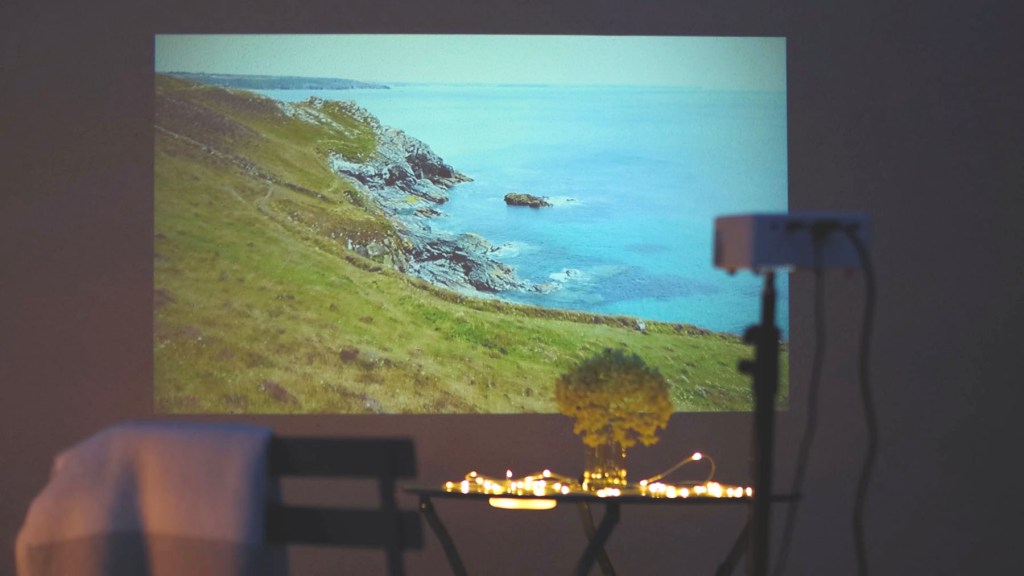
And just so you know Akiyo provided the projector for me to make this article and video review, though all the thoughts and opinions are my own. If you’re looking to get one for yourself I’ve got affiliate links throughout the article which helps support these reviews. So let’s dive in and take a look at the Akiyo O1.
Click to buy your own…

(Affiliate links which help support this blog)
Unboxing the Akiyo O1 Tiny Projector
Taking it out of the box you’ve got the projector itself and a number of accessories to explore. The projector is very smart and I was surprised at just how small it is, measuring just 135x110mm along the top whilst being 55mm deep.
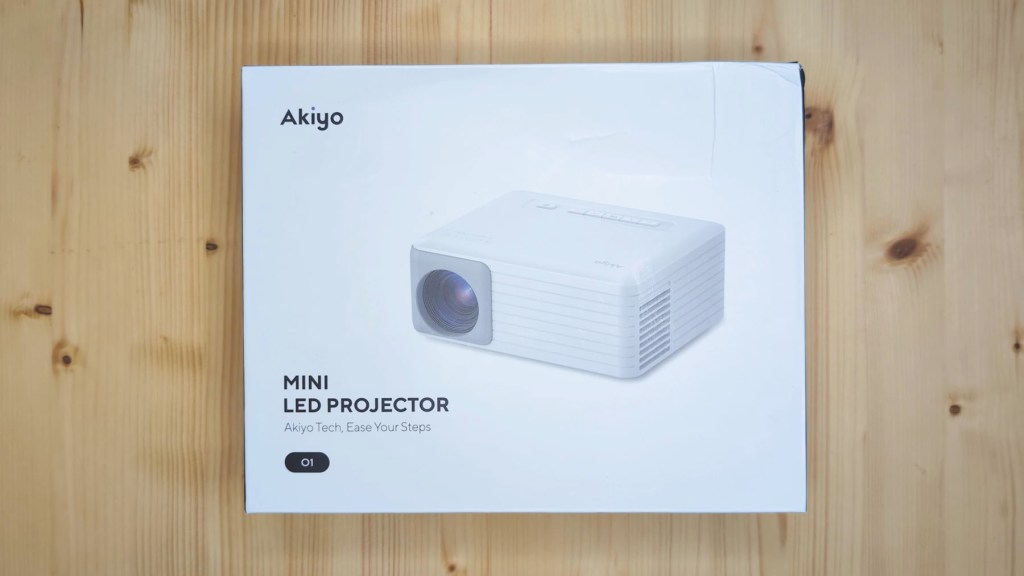
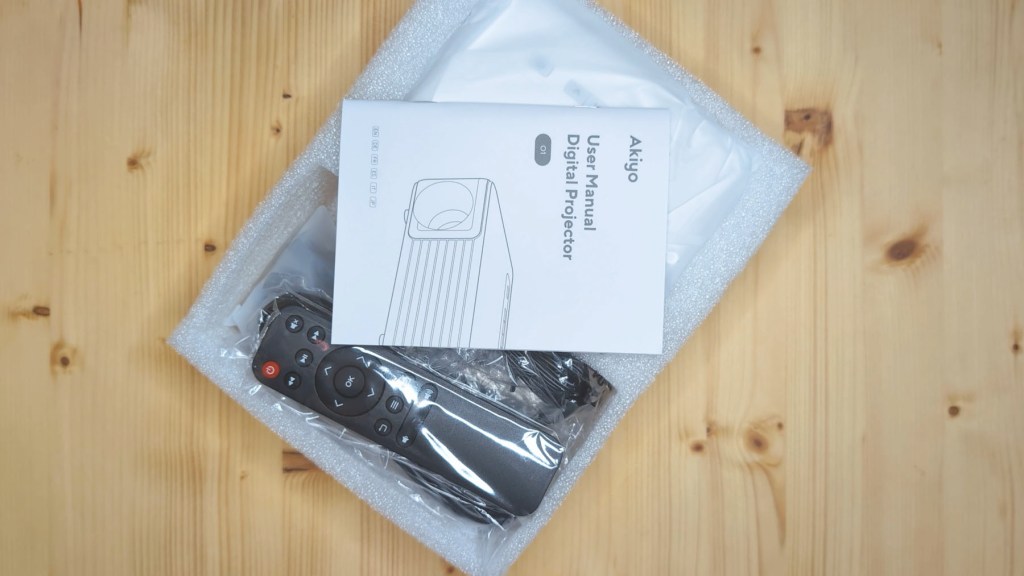
At first glance I really like the design which is clean and minimal, thanks to its white and gray plastic housing . There are control buttons on top with ports on the back, but I’ll come on to those in a minute.

First let’s take a look at the accessories you’ll get with the projector.
To start you’ve got the remote control, a pretty standard design, which takes two AAA batteries, not included and next is the Main’s power adapter. Then there’s a 1m HDMI to HDMI cable and the user manual in a number of languages. Next there’s two long cleaning sticks for keeping the lens dust and smudge free and finally there’s an adjustable mini tripod to elevate the projector off your surface. It has a sturdy metal ball joint which tightens very well.

Going back to the projector and starting on the top, you’ve got directional buttons for navigating around the projector interface, and the power button. On the front there’s a cap for protecting the nice big lens behind it.


On one side there’s manual keystone and focus styles for adjusting the edge angles and sharpness respectively, as well as the speaker hidden behind the dot pattern. On the other side there are vents for the fans to keep the projector cool.
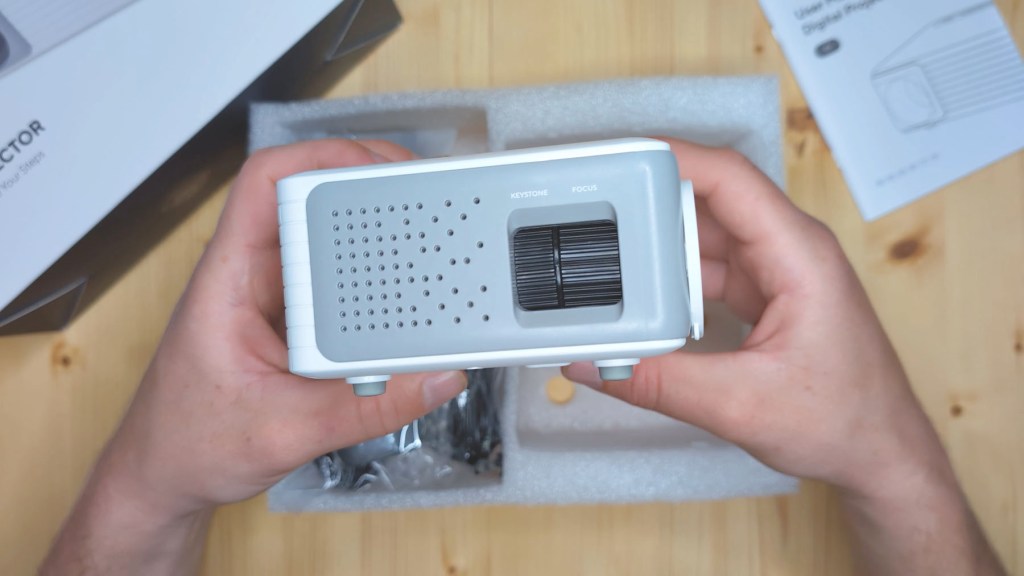

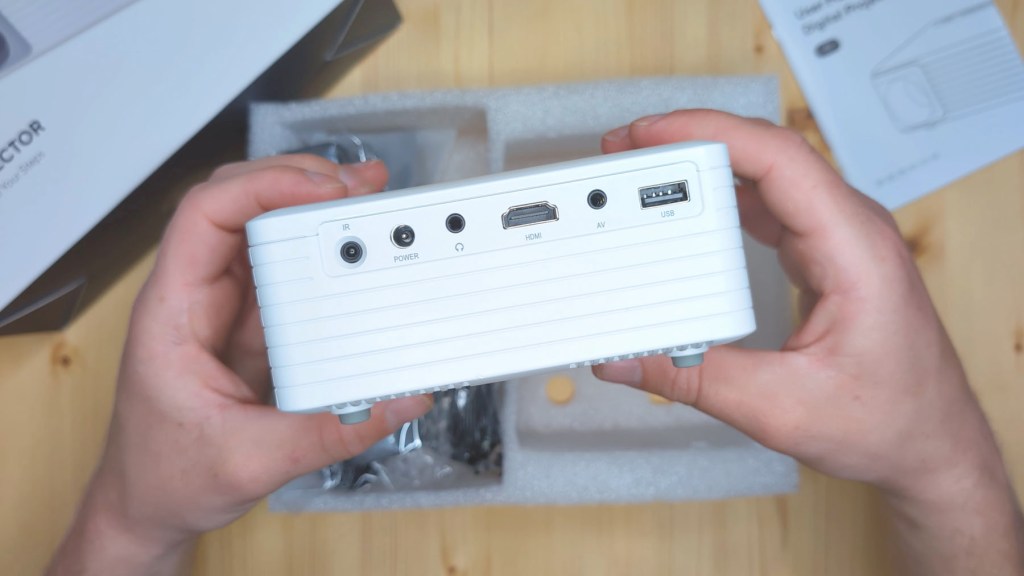
Underneath the projector there are four padded feet, a standard tripod mount offset for optimal balance, and an adjustable foot for raising the projector on a flat surface. Finally on the back there’s an infrared sensor and then a number of ports for connectivity and using the projector.


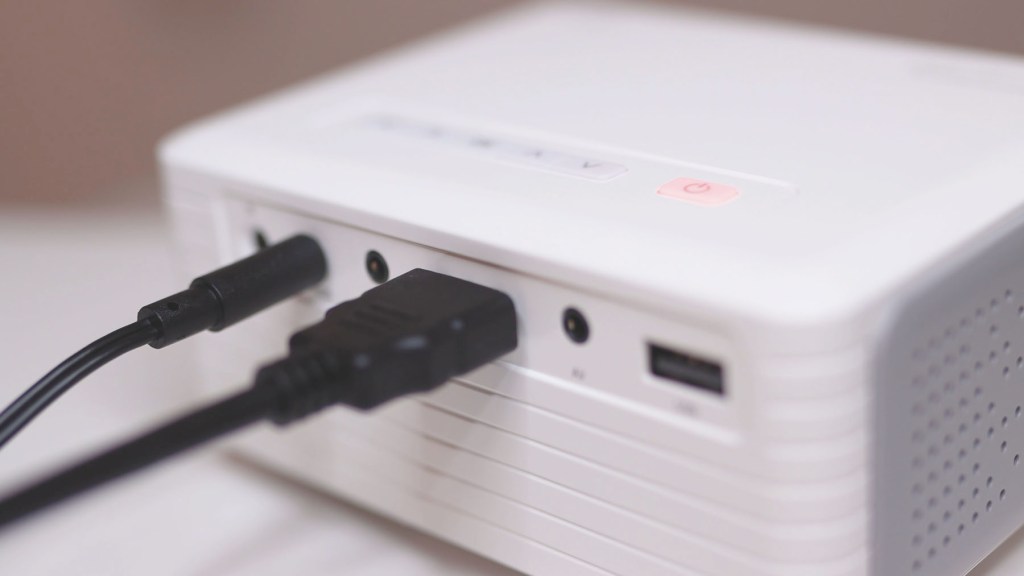
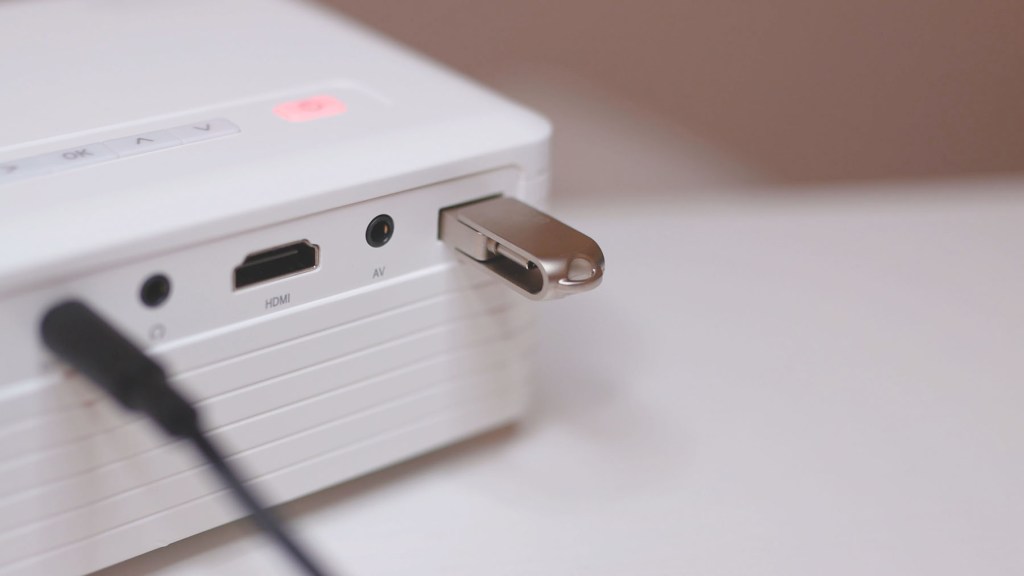
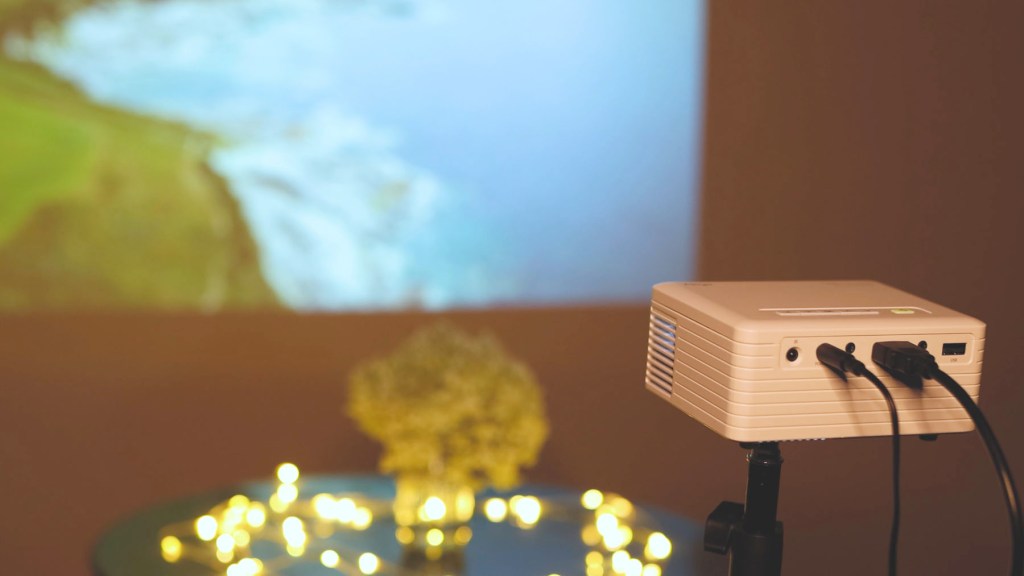
Up first is power which uses the adapter shown earlier, then there’s a headphone port taking a standard 3.5 mm jack. Next there’s a HDMI port to take the provided cable or any others you have depending on what device you’re connecting to. Then there’s the AV port and finally a USB port too.
Click to buy your own…

(Affiliate links which help support this blog)
How to set up a tiny projector
So that’s the Akiyo O1 out of the box, now it’s time to get set up and using it. Thankfully setup is super easy, with just a couple of steps.

First put two AAA batteries in your remote, plug the projector into the mains and put it on a flat surface or mount it to a tripod.
Turn the projector on and it will fire up quickly, showing the Akiyo logo and you’ll then need to choose your language. After that you can see the connection screen and that’s the projector ready to use – simple!


Using the focus dial on the side it’s really easy to get pin sharp focus. The Keystone dial is a great addition too, with 15° of adjustment up or down, though the top and bottom edges can be a little blurry as you’re adjusting the lens’ plane of focus. It’s much better just to get the projector set up properly flat and 90° to the wall for the best projection quality, before playing with the keystones.


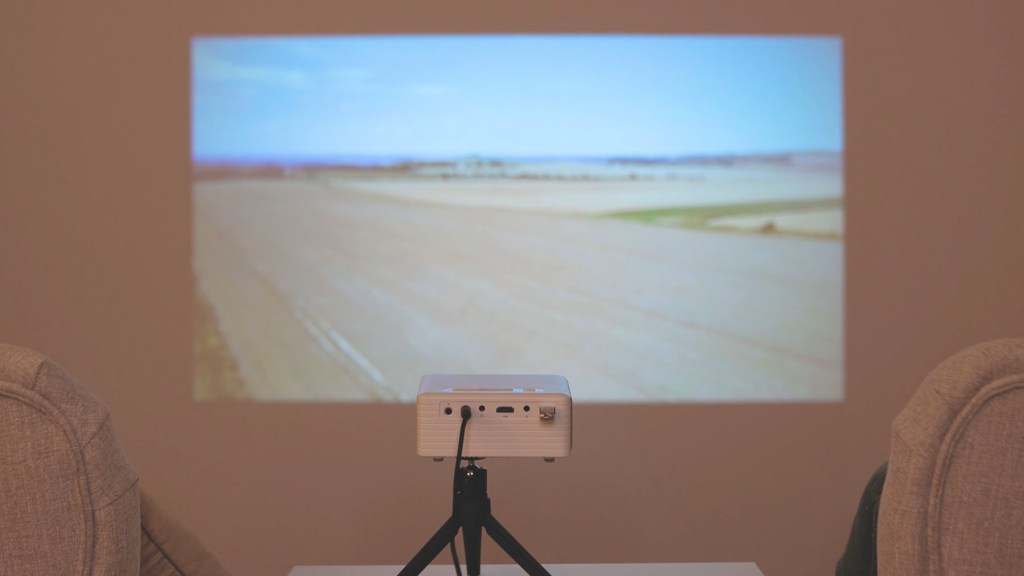
The O1 can project from 0.6 to 4m away from the wall, giving a 55cm image across the diagonal at 0.6 of a metre and a 360cm image when 4m away from the wall. As you’d expect the brightness gets less as the image gets bigger and during my testing my preference was between 1 to 2m away from the wall, which gave a nice big image which was plenty bright. That said, as long as you’re in a dark room you’ll get a decent image whatever the distance away from the wall.
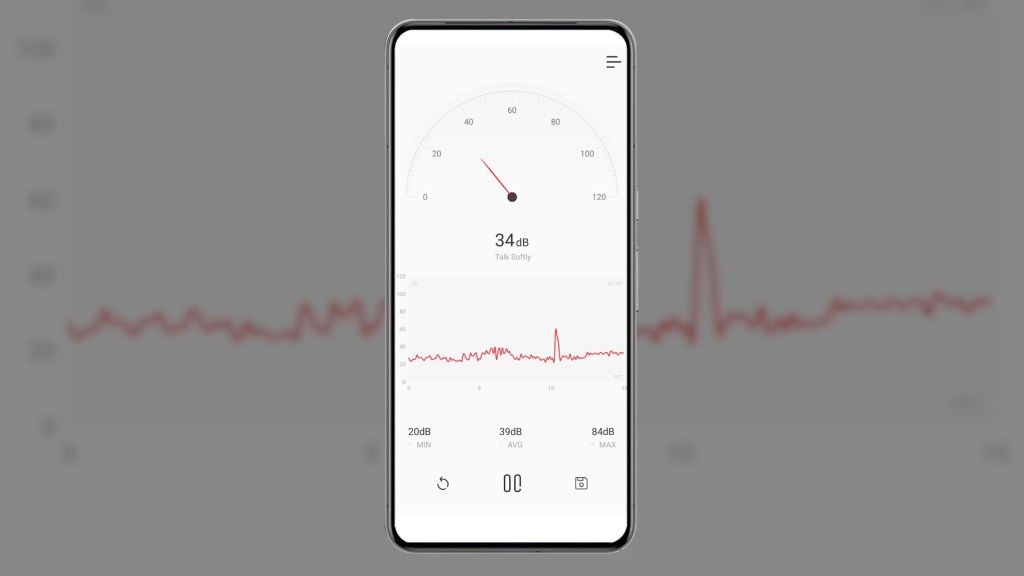
As for noise as with all projectors there are fans to keep the elements cool, but they really aren’t too loud. I registered decibels in the mid-30s from 1m away which is just a light hum in the background and would soon be drowned out by the sound of a movie or TV show.
If power consumption is a consideration, because you’ll be taking the projector out and about, the O1 draws just 31 watts and my trusty Allpowers 1800w battery pack said it would last more than 24 hours.

We’re also on Instagram!
Check out yogi.the.van to keep up-to-date with all our adventures in the van!


Navigating the user interface of the Akiyo O1
Back on the home screen it’s from here you can choose how you want to play from the projector. You don’t have any apps or programs built into the Akiyo 01, so you’ll have to play from other devices and wire them to the projector, but thankfully there are a number of options which make it very quick and easy.
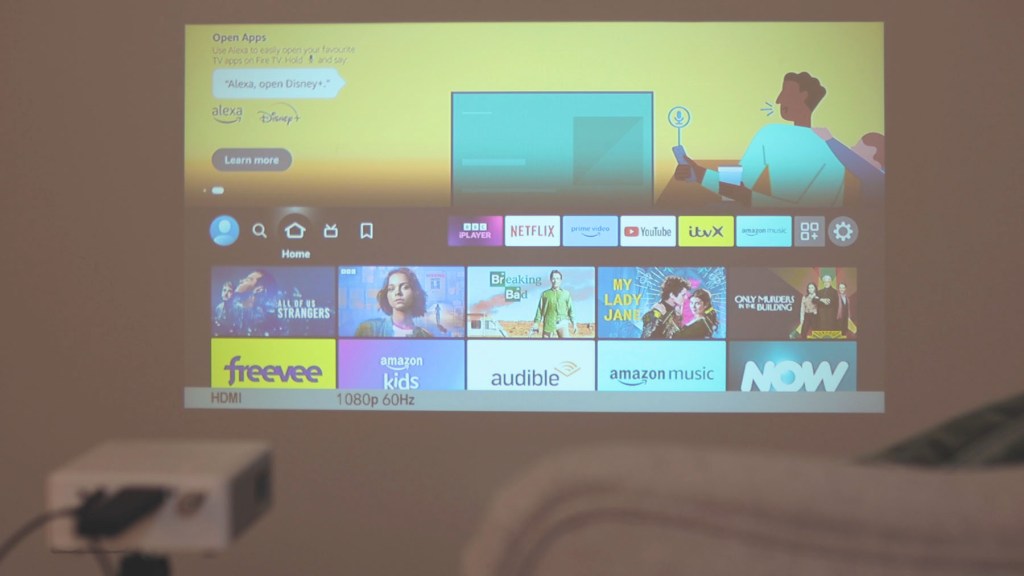
If you choose HDMI you can connect to many devices including computers, games consoles and TV sticks, with many more if you have the right adapters. Simply connect the projector to your device via a HDMI cable, select HDMI playback via either the remote or using the buttons on the top of the projector, and it will search for a HDMI device and connect if it finds one. If not you’ll have a number of help options appear on the screen.
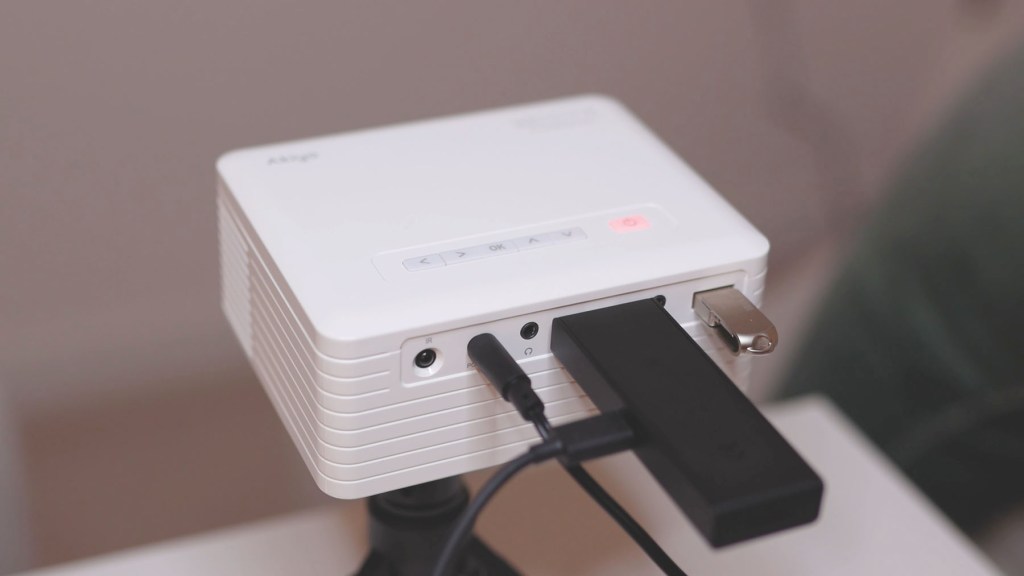
USB also gives a wide range of content – simply load a USB stick with videos, movies, music, photos, or documents, and select USB playback. Click on one of the categories and you’ll be taken to the folder interface and any files which match that category will show up.

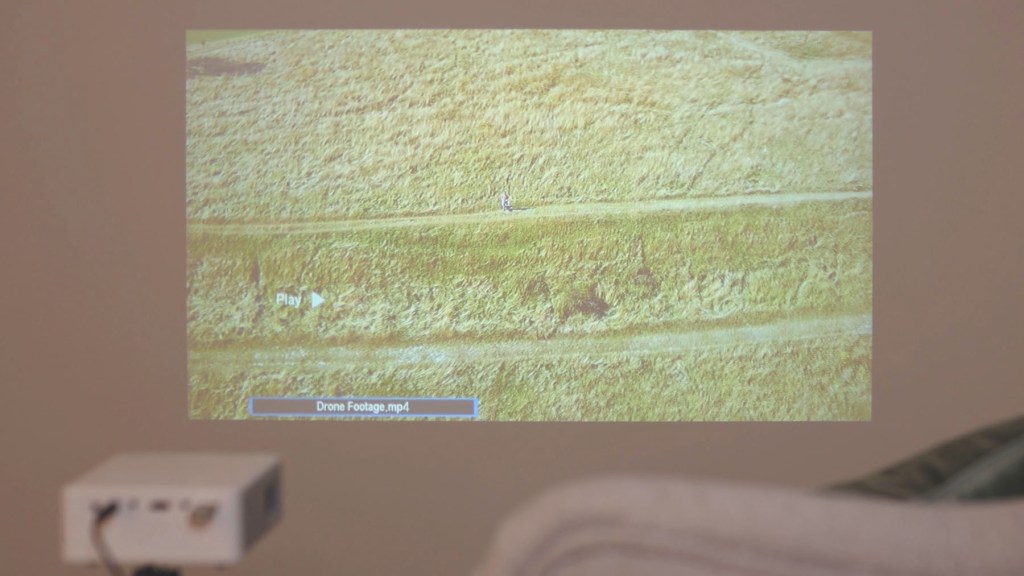


It’s worth noting here that once the projector is 720 HD playback, it supports files up to 1080 full HD, so loading a 4K film won’t work as it needs to be a resolution of full HD or lower.
Click to buy your own…
(Affiliate links which help support this blog)
Exploring the settings of the Akiyo O1
Let’s explore the settings next, as there are a few changes you can make to optimise your viewing quality.
Up first is picture, and here you can adjust your picture mode, with a couple of presets to choose from, or you can manually adjust the brightness, contrast, colour, tint, sharpness, colour temperature and noise reduction yourself.

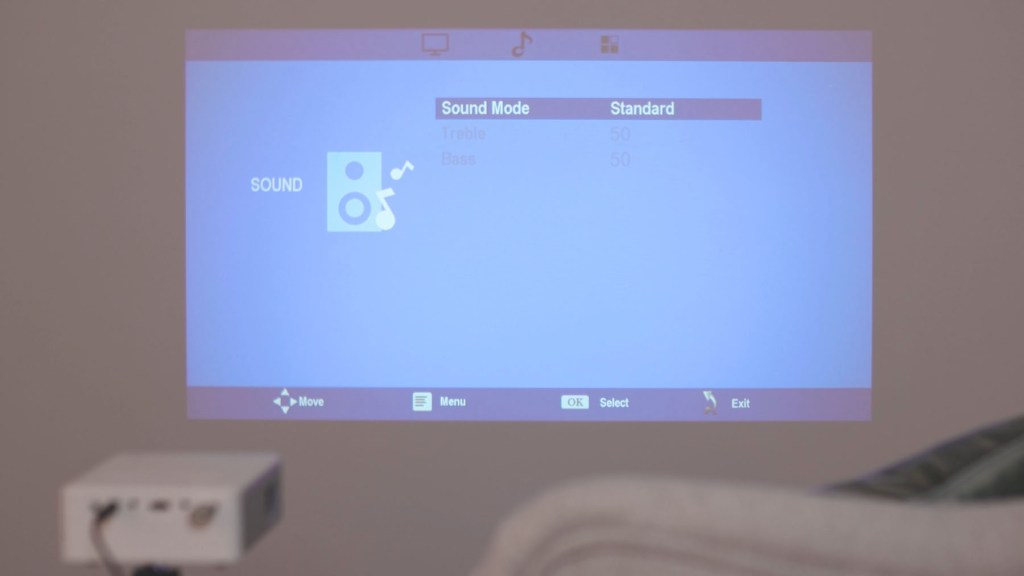
Next is sound mode, and you can choose from standard, movie, music, sports and user, where you can adjust the treble and bass yourself.
On the topic of sound there is a 3w speaker built into the projector, which is a nice addition, but if you’re watching a movie you’ll probably want to play back through a bigger speaker, but that’s no problem thanks to the 3.5 mm audio port just plug your speaker in and you’ve got a nice cinema experience.
The final setting is option, and here you can change your language and aspect ratio.

You can then change your projection mode from front desktop to rear desktop, front ceiling and rear ceiling, for if you’re projecting onto the rear of a screen or have the projector mounted upside down from the ceiling.

You can then perform a factory reset or software upgrade, view the current software version and zoom out from 100 to 75% – perfect for if you’re projecting in a very small space.


Back on the home screen there’s also a handy help page which contains some of the main queries you may have with a QR code for more help.

Should you buy the Akiyo O1 Mini Projector?
For around £50, the Akiyo 01 is a really impressive mini projector.
You won’t get the brightness or resolution of the most expensive projectors, but considering it’s small, affordable, portable and not power hungry, it’s the perfect addition to a bedroom, living room, den, man cave, or for a hassle-free movie night under the stars.
Akiyo also has a Wi-Fi and Bluetooth version of this projector available for just a few pounds more.

If you’re keen to get one for yourself, there are affiliate links throughout this article which help support these articles and videos at no extra cost to you.
Thanks for stopping by!
Click to buy your own…
(Affiliate links which help support this blog)
 The Tiny Camper Van