

This article is a written account of a video from the Lens Of James YouTube channel. Watch the video above and subscribe if you like what you see!
This article contains affiliate links to relevant products I have used in my videos. By buying through these links, I receive a small percentage of the sale at no cost to you which helps me support and grow my website and YouTube channel, so I can create more content like this in the future. Thank you for your support.
In this article…
- Introducing The Carpuride W901 Plus
- Unboxing the Carpuride W901 Plus
- Features Of The W901 Plus
- Screen features of the Carpuride W901 Plus
- Setting Up Android Auto on the Carpuride W901 Plus
- Attaching The Device In The Van
- Using the Capuride W901 Plus
- How Much Does the W901 Plus Cost?
- Using the carpuride W901 Plus safely & legally
- Should you buy the Carpuride W901 Plus
Introducing The Carpuride W901 Plus
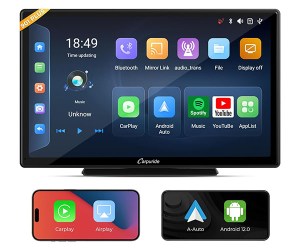
This is the Carpuride W901 Plus and it’s the next generation of portable touchscreen CarPlay and Android Auto dashboard consoles for your car – it’s essentially an Android tablet with CarPlay and the capabilities are really exciting.
The W901 Plus not only connects with your phone for easy navigation and playing music but, thanks to the addition of Android 12, can also be loaded with apps, so yes, you can play YouTube or Netflix straight from your car or van, PLUS you can finally control it with your built-in bluetooth controls, but I’ll come onto all that including how to set it up, later in the article.

I love these portable head units because they only take an easy 5 minute install without removing the manufacturer head unit or dealing with confusing wiring, and they’re compatible with pretty much any vehicle.
Last year I reviewed Carpuride’s W103 Pro and have loved using it ever since, so it’ll be really exciting to see how different this dashboard console is and whether it’s an upgrade I need in my tiny van conversion. Carpuride kindly sent me the device to make this article and video possible, though all the thoughts and opinions are my own and based on my own experiences. If you’d like to buy one of hers devices for yourself, I’ve got links below and be sure to use discount code “LENSOFJAMES” to get £50 off your order from carpuride.com.
Click to buy your own…


(Affiliate links which help support this blog)
Unboxing the Carpuride W901 Plus
The first thing you notice is the screen unit itself, which is 9 inches diagonally, and 8.74 inches long and 5.3 inches wide, so not too obtrusive on your dashboard and feels like a small tablet.
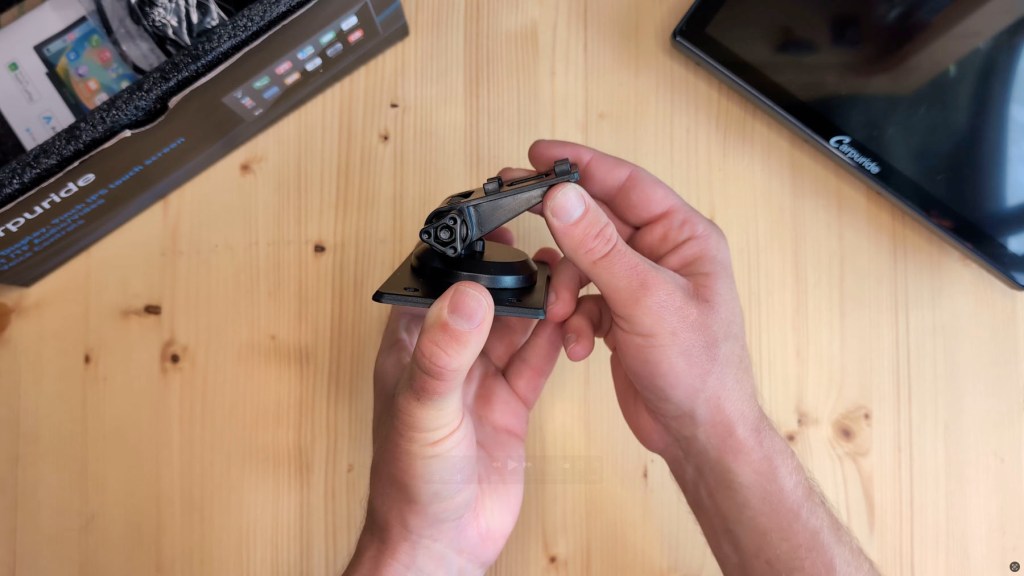
In the box you’ll also find a suction cup mount with an extendable arm, a plate for the suction cup, an adjustable sticky pad mount with a sticky pad, an 3.5mm audio cable, a 12v car charger to DC cable and an instruction booklet.

Features Of The W901 Plus
Going back to the screen, on the front you have a 1024×600 pixel HD IPS capacitive touchscreen with a built-in microphone to the bottom left.
Turning it over, on the back you have the built-in 8Ω2W speaker, the point where either of the two dashboard mounts can connect to and a range of ports on the edge.

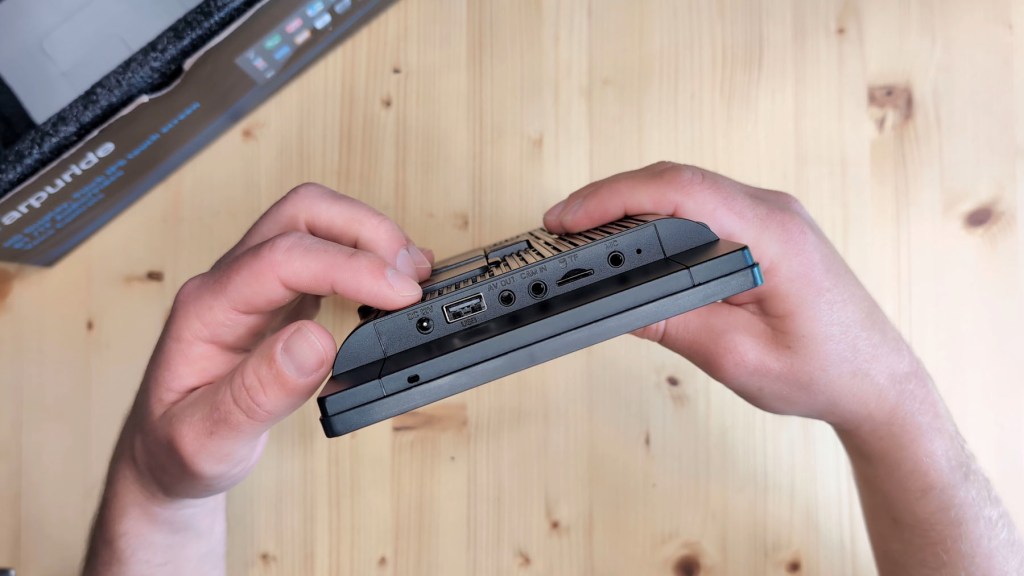
Starting on the left, you’ve got a DC 12V to 24v 3 amp port, which will power the device using the cable provided, a USB-A port for if you want to play files from a USB device, a 3.5mm AV out port for an AUX cable which is a wired method of playing music from the device through your car speakers, a 3.5mm reversing camera port which is an optional extra for these devices, a micro-sd card slot if loading your own media and finally a 3.5mm microphone port so you could add an external mic for clearer calls.
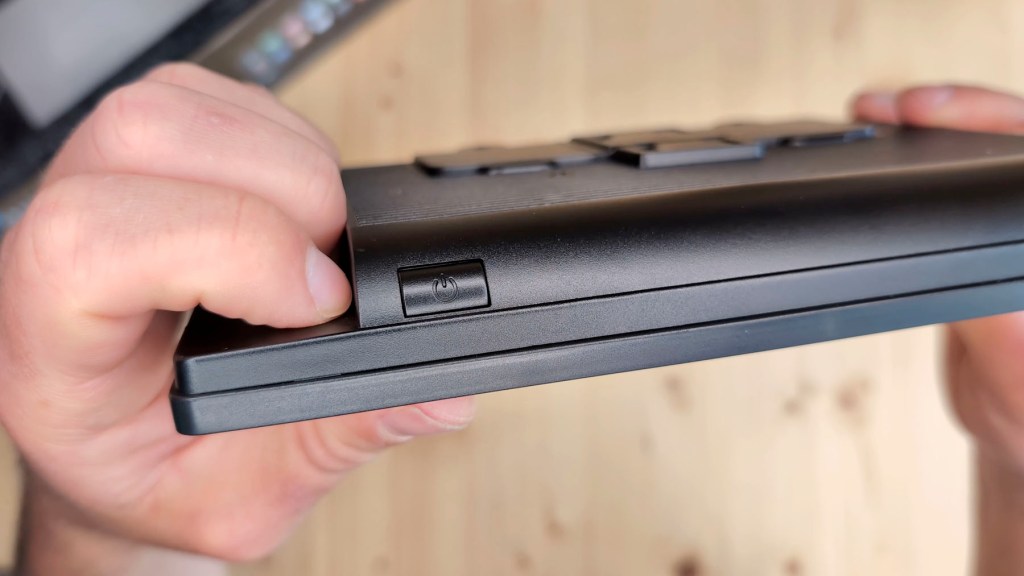
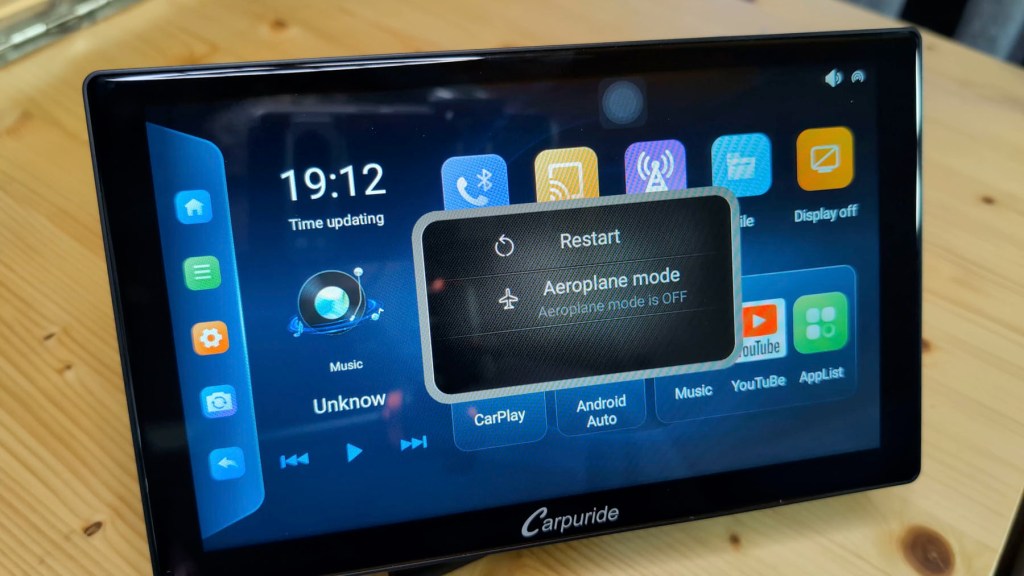
On the top you’ve got the power button and, whilst the device auto-powers on, a short press will wake the screen up from sleep and a long press will bring up a restart and aeroplane mode option.
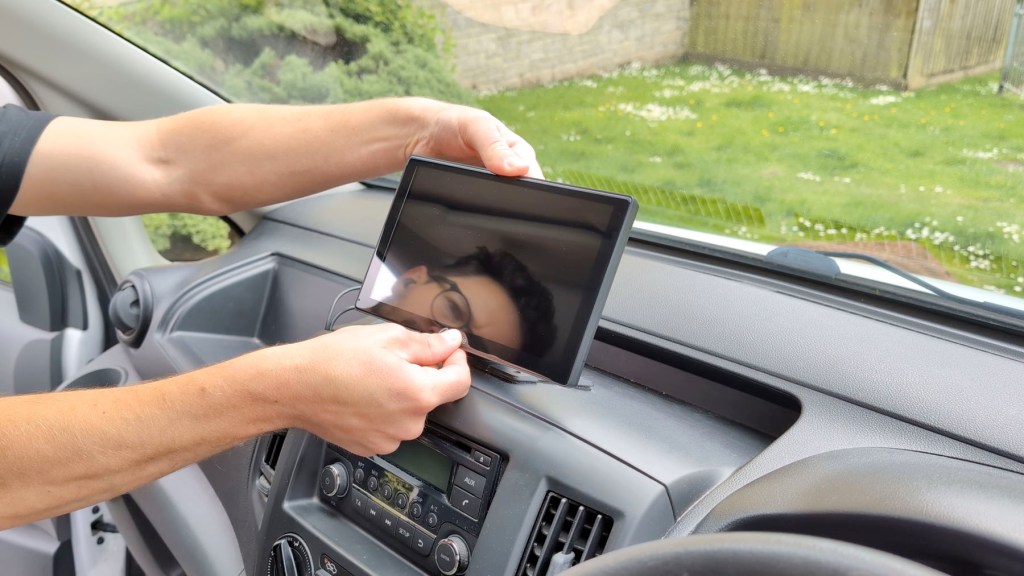
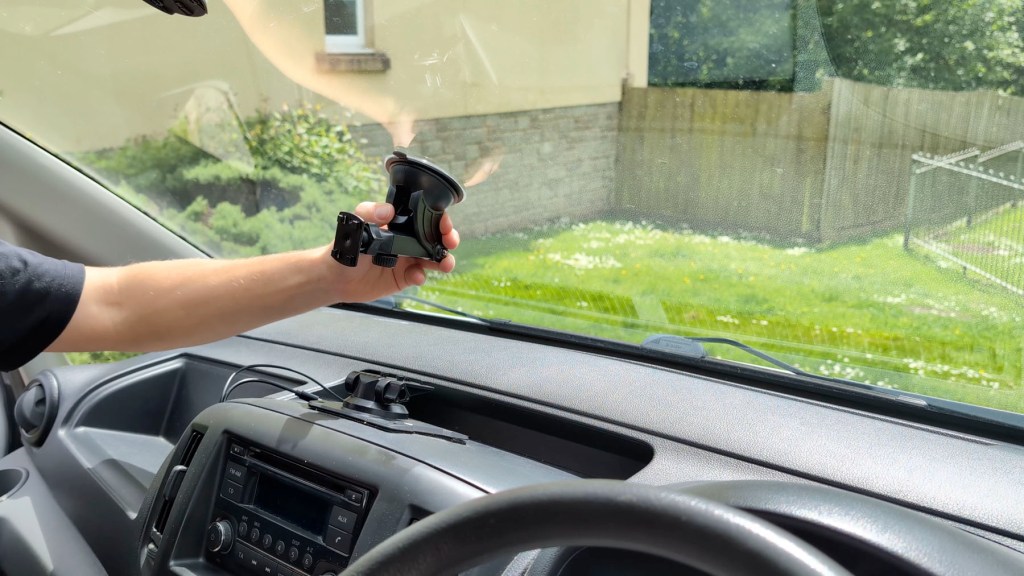
It’s nice to have the two mounting options in the box. The suction cup gives a really firm hold and the adjustable arm and base are really great for being able to put the screen in any direction or angle you want, whether that’s on the dashboard or windscreen.
The flat mount with the sticky pad is a more permanent method of fixing and requires more of a flat surface to get a good bond, but would give an even sturdier attachment and has a much smaller profile than the suction cup mount.
We’re also on Instagram!
Check out yogi.the.van to keep up-to-date with all our adventures in the van!


Screen features of the Carpuride W901 Plus
Plug the device into power and it always turns on straight away, with the screen being bright and clear. After the Android and Carpuride loading screens, the homepage of apps will appear and the first thing that struck me was the difference in layout and design from the 103 Pro I reviewed previously. But this is where things really get good…

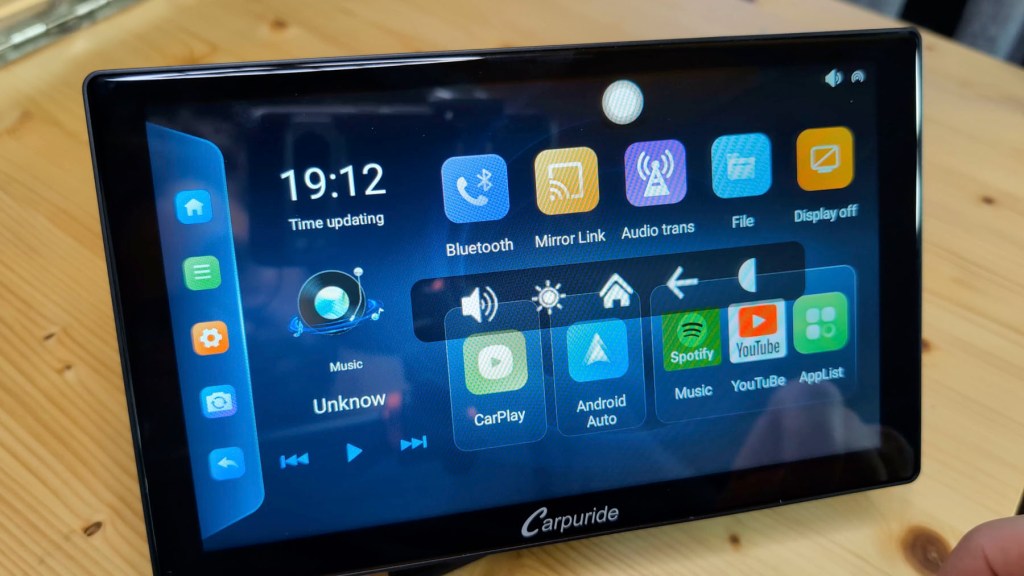
On the homepage you’ve got the menu down the left hand side, the clock and music controls to the right of that, and then the apps taking up the rest of the screen.
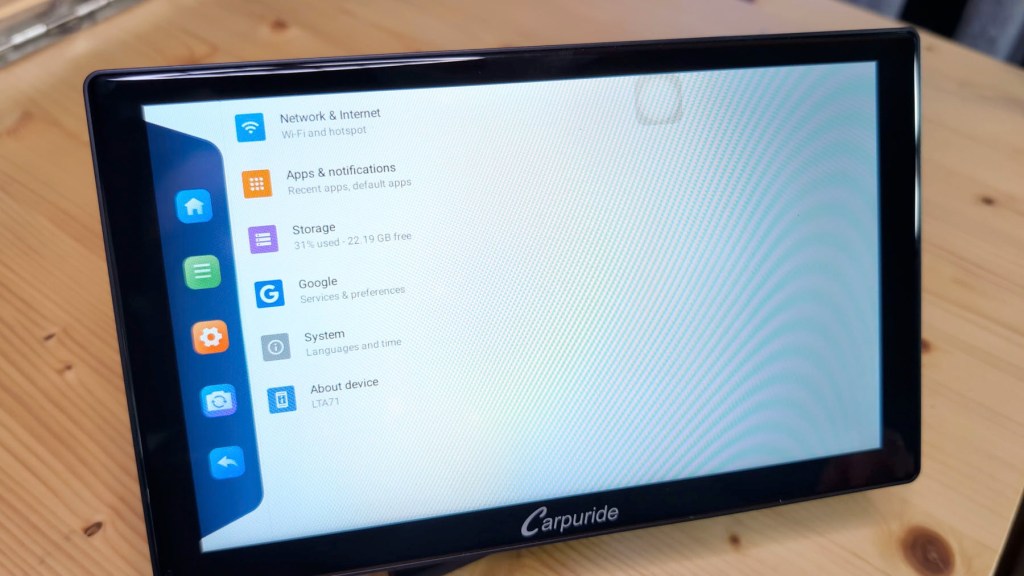
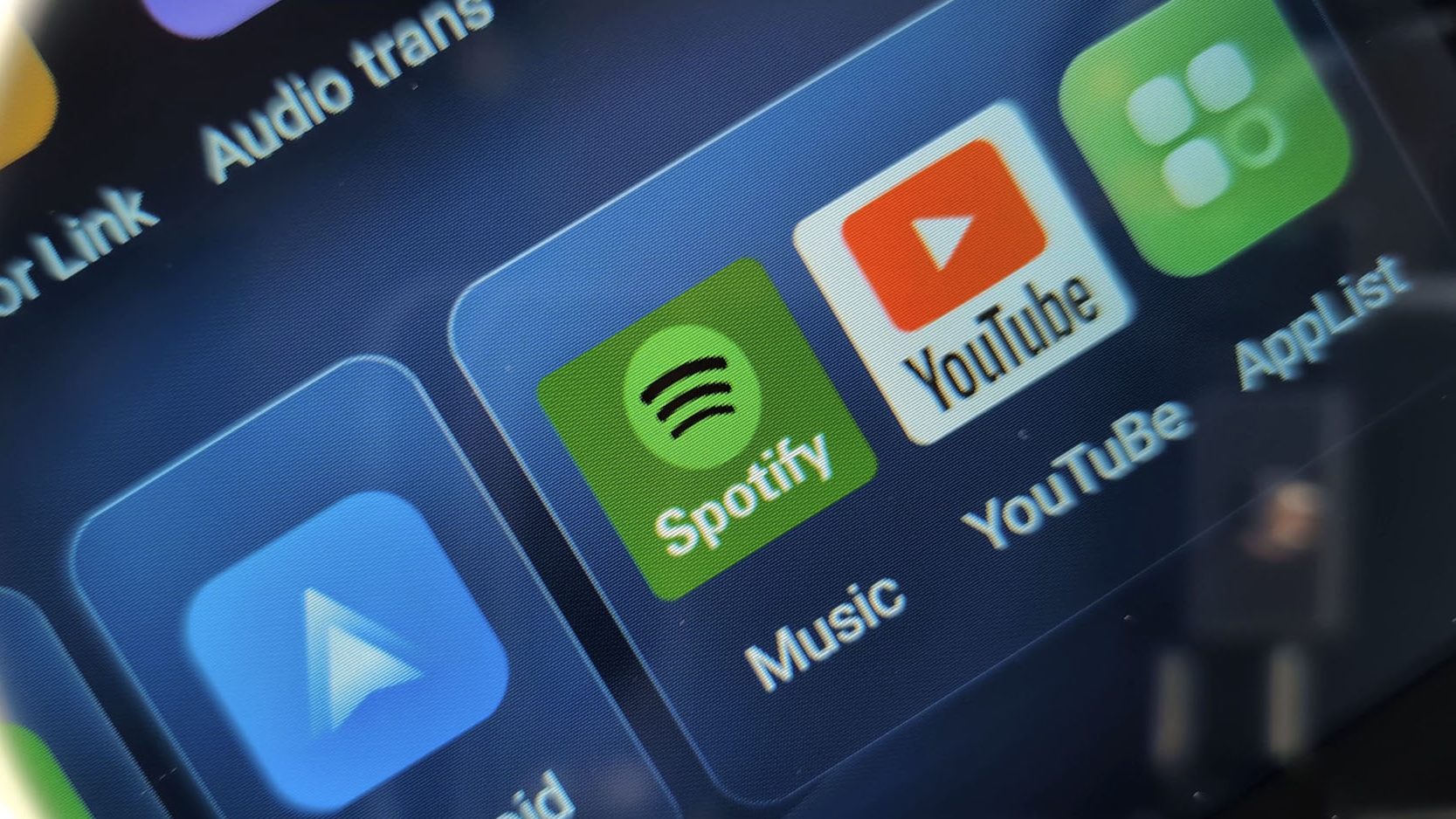
This menu screen isn’t customisable unfortunately and it’d be nice if this was an option, but to access all the other apps, including any you download via the Play Store app, or load via a mini SD card, you simply click on the applist button in the bottom right. You can also head into the settings of the device and it’s here that you realise that you’re on an Android tablet and not just a multimedia device like the Carpuride 103 Pro.
You’ve also got a transparent dot, which is always visible on any app you use, though you can move it around the screen. Press it, and you’ll get a menu with the option to adjust the sound and brightness, go back to the home screen, go back one page and bring up the left hand side menu, all without leaving the screen you’re on.
In settings, you’ve got your primary menu and can go in and connect to wifi or hotspots, which you’ll need if you’re to download apps or stream shows, though because the device needs to be connected to your phone via wifi and bluetooth for Android Auto and CarPlay to connect to, say, your home wifi to download apps, then Android Auto or CarPlay will be turned off. It’s also a safety feature as you can’t can’t be watching Netflix while you‘re navigating! There are other settings including aeroplane mode and VPN as you would expect from a tablet.
You also have app and notification settings and storage settings. The device has 32GB built in and mine used 8.8GB of that for the software, so therre a good chunk left to download shows if you intend on using it as an off-grid can conversion TV…which I absolutely did and talk about later in the article.
The Google setting deals with your Google Account details, and you’ll need to sign into a Google account if you want to download apps as it’s an Android device that relies on the play store. You can also, however, install apps via a micro-sd card or USB stick if that suits you better.
In the system setting you can change your language and time zone. My device came in China Standard Time and without being connected to wi-fi and without built-in GPS, the correct time and date need to be set manually.
Finally under the ‘about device’ setting, you can see there’s 2GB of RAM and you’re on Android 13, despite the box saying it comes with Android 12 – I hadn’t even connected it to the internet to update at that point.
The screen is bright, sharp, really responsive, and actually a pleasure to use which was a surprise, perhaps not quite as good as a phone, but it’s very usable and you don’t have to tap buttons multiple times to get them to open or wait for the screen to catch up with your finger.
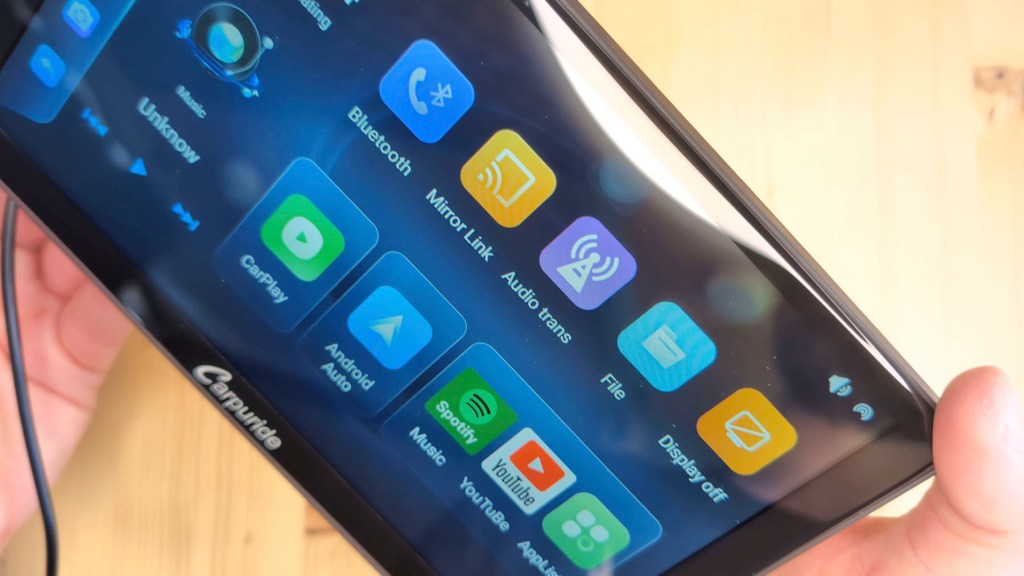
Back on the homepage, the menu on the left hand side consists of the home button, the list of apps running which is a nice way to manoeuvre between apps instead of going back to the homepage and then the settings button, which is for the Carpuride interface and not the Android system shown earlier.
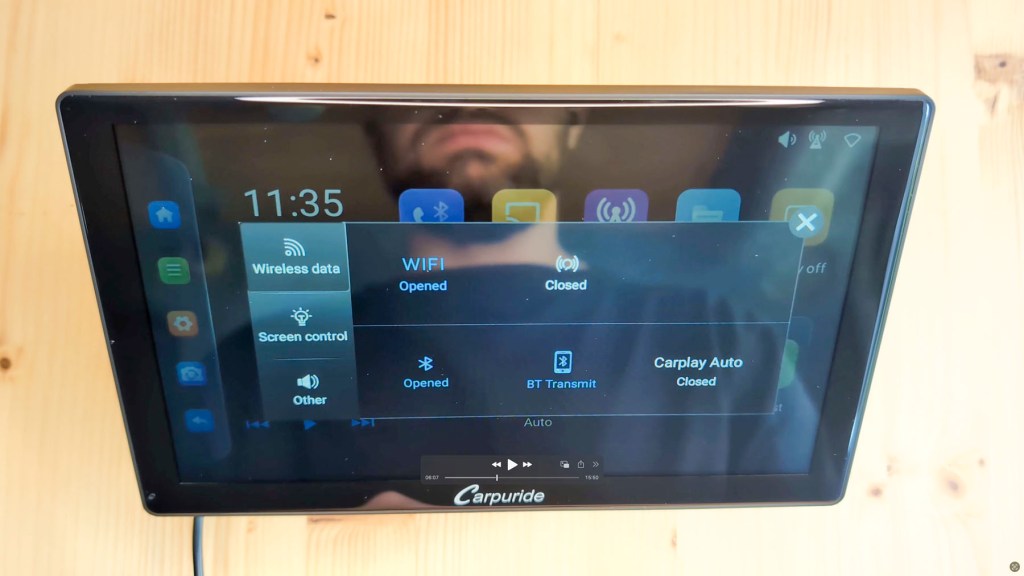

Here you can turn the wifi and bluetooth on or off, which will in turn Android Auto or CarPlay on or off as mentioned earlier, adjust the sleep mode with the options of using a screensaver or keeping the screen on all the time and change the screen brightness. Whilst the screen dims, I think it could do with going even darker. That said, the brightness is certainly good enough for direct sun or if you’re wearing sunglasses.
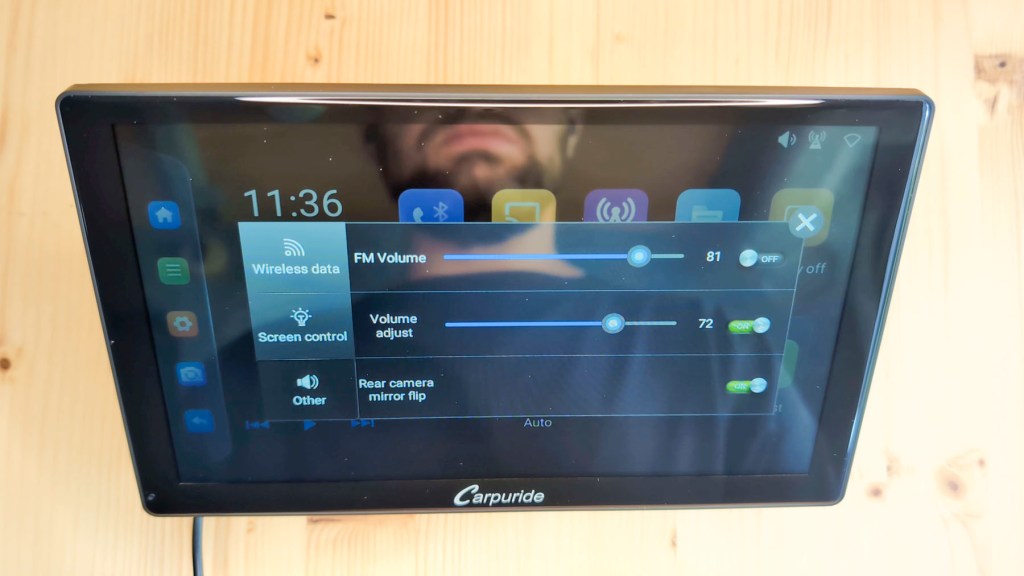
Under the final setting called ‘other’ you can adjust the FM volume or toggle it on or off and adjust the volume of the built-in speaker. Here you also have the ability to toggle on or off the device sounds, i.e. tapping noises and, in theory, the very loud and startling sound the device plays when it shuts down. I can’t work out what this sound is meant to be, but after weeks of using the device daily, it still makes me jump. I say in theory, because despite toggling the sounds off, when I restart the device the sounds reappear so it’s possible an update is needed to fix this, but it’s a new device and that will come with time.
Click to buy your own…


(Affiliate links which help support this blog)
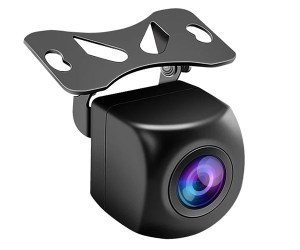
Lastly, below that you can flip the reversing camera if you have one installed and require that function.
I’ve got this full HD one from Carpuride which can be used in two ways. It comes with a 5m extension cable, plus a 1.5m cable attached to the camera. Plug the 3.5mm cable into the 901 and press the rear camera button and you’ll get a lovely full screen view of the rear of your vehicle. The red wire is to be spliced into your reversing bulb wire, so when you put your vehicle in reverse, the 901 will automatically bring up the reversing camera instead of having to press a button every time.
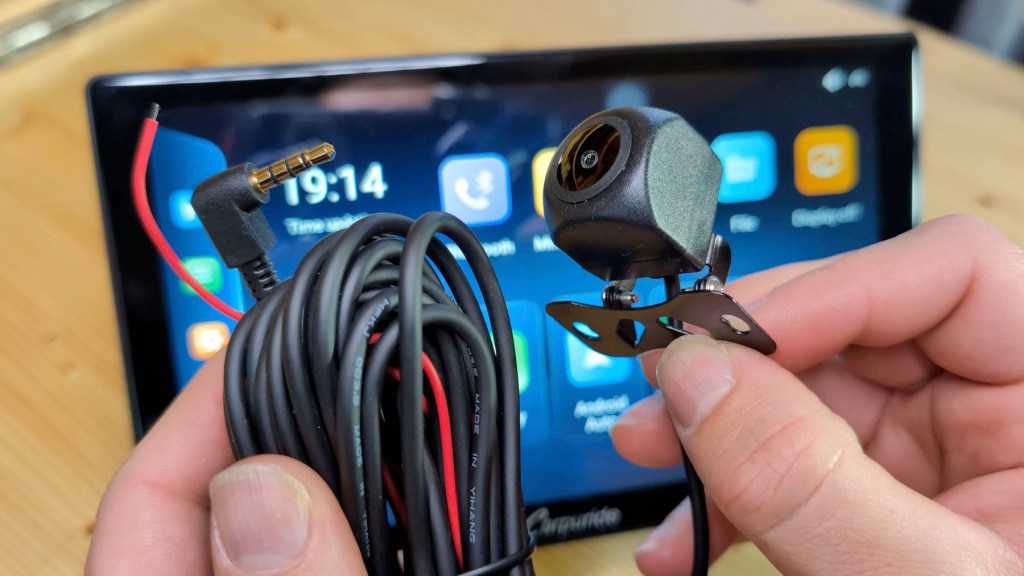

There’ll be a full, in-depth video and article on how to install this rear view camera soon, so do subscribe and click the notifications bell if you’d like to see that.
Back on the home screen, you’ve got the clock which always says ‘time updating’ for some reason, and the now playing interface.
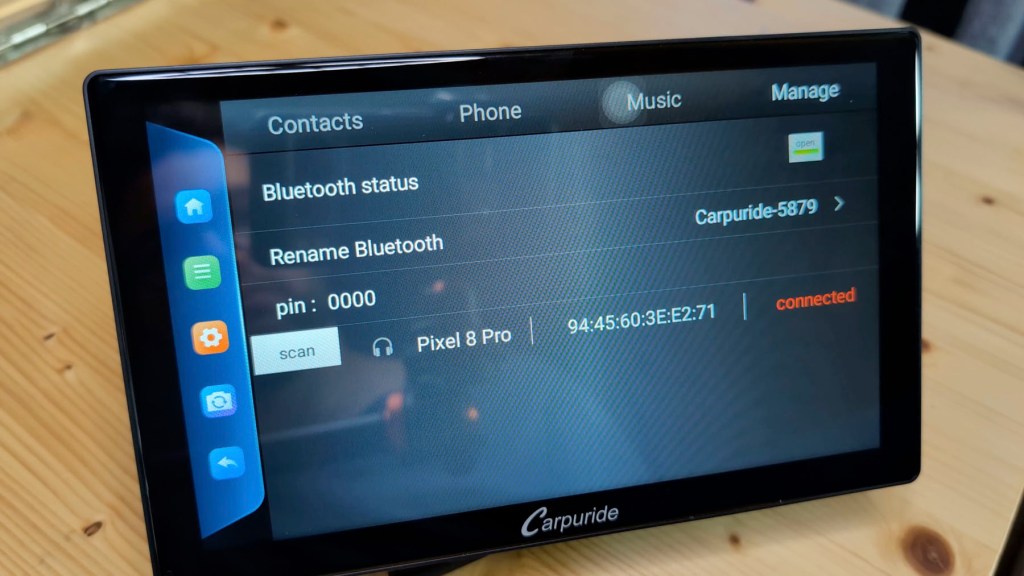
Then there’s more functionality to explore. The first app is bluetooth, and here you can manage your bluetooth call preferences when you’re not using CarPlay or Android Auto. First you have your contacts which will be pulled from your phone, then a phone tab to dial a number, next a music tab which will show music playing from your connected phone and lastly the manage tab which allows you to change your device bluetooth name and look for bluetooth devices to content to. I tried to connect the device to a bluetooth speaker and headphones but it wouldn’t, so it’s possible this is just to connect your phone via bluetooth without using CarPlay or Android Auto.
Next is MirrorLink, which enables you to share your phone screen to the device. For iPhones, you have to turn the wifi and bluetooth off on your phoneand then only connect to the 901 plus from your phone via wifi. Click the screen mirroring function on your iPhone and connect to your car screen!
For Android phones it’s a little more complex and requires you to download CarLetter Cast app from the Play Store. Follow the steps on the app to connect to the car bluetooth, then set up a phone hotspot and then connect to your mirroring.
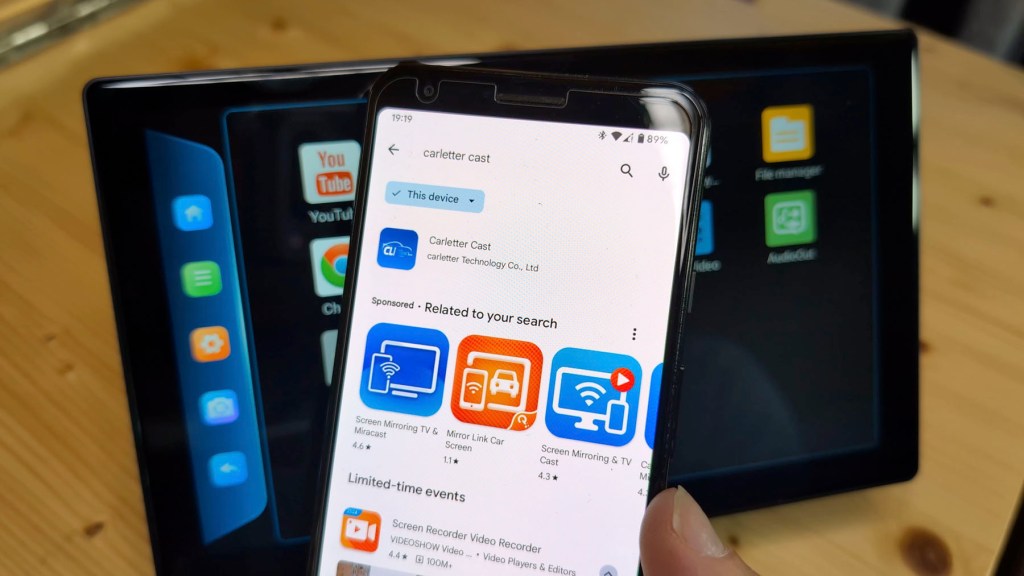
It’s honestly not a function I’ll use much and it’s a shame you need a separate app for Android, but it’s nice to have the functionality there.
The next app to explore is Transmit and this is where you’ll choose how you want to play sound from the 901 plus.
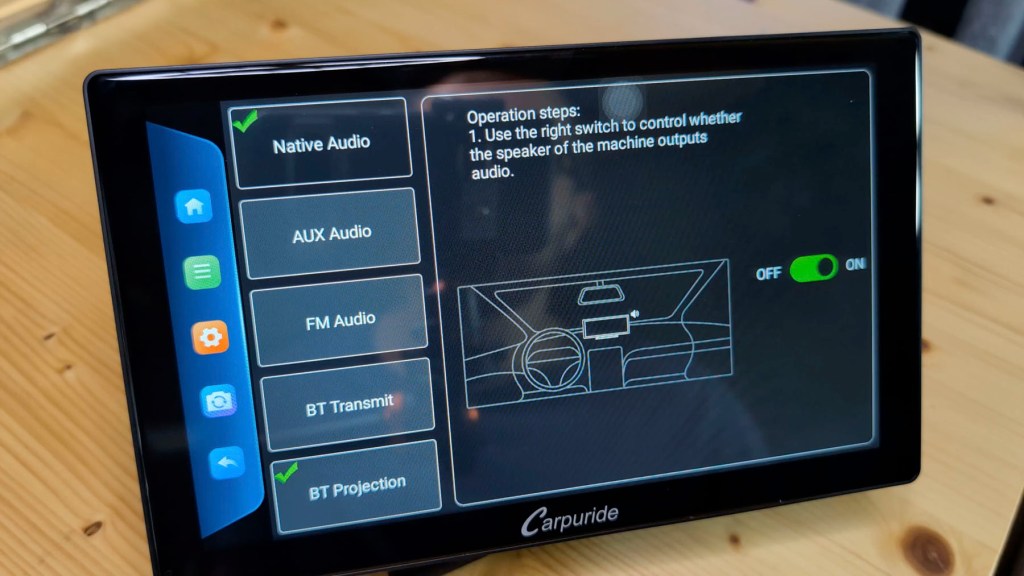
Choose native audio and it will play through the built-in speaker, which it will do automatically if you don’t have the device connected via an audio cable or bluetooth. The speaker is 5 watt and pretty good quality. Select AUX audio below and, once you’ve plugged the provided audio cable from the device into the car’s AUX port, you can play sounds wired through your car speaker. It’s a stable and high quality way to listen to music while driving.
Choose FM audio and it will transmit the device’s sounds to a radio frequency which, when the car radio is tuned to that frequency, can be played through your car speakers. Toggle the switch here and you can choose the device’s frequency. Match it on the vehicle’s stereo and you’ll hear your sound!
BT transmit will play sound through your car speakers via bluetooth, assuming your car has bluetooth capabilities.
Whilst BT projection plays sound through the car speakers via bluetooth using the apple CarPlay or Android Auto systems, and this is the setting you’ll want if you want to retain use of your vehicles hands-free steering wheel bluetooth controls,
The next app is File, and this is the area you can look at what’s on the device, see what’s on your external devices, though interestingly only the mirco-sd card, or TF card, option is there and not USB, and also copy files from your memory card to the device under the paste function.
The final app along the top is Display Off which does what it says on the tin. Tap it, and the screen goes dark. You can wake the 901 up again by tapping the screen.
You may notice the odd spelling or grammar quirk, but it’s no bother and you’ve got to remember that these devices have been made abroad and translated for an english-speaking market.
Setting Up Android Auto on the Carpuride W901 Plus
As I have an Android phone, I’ll only be setting this system up in this article but if the process for how to set up CarPlay with an iPhone is as simple as for Androids, it won’t take long at all.
To set up Android Auto, tap the app and make sure the auto symbol is selected at the bottom left of the screen.
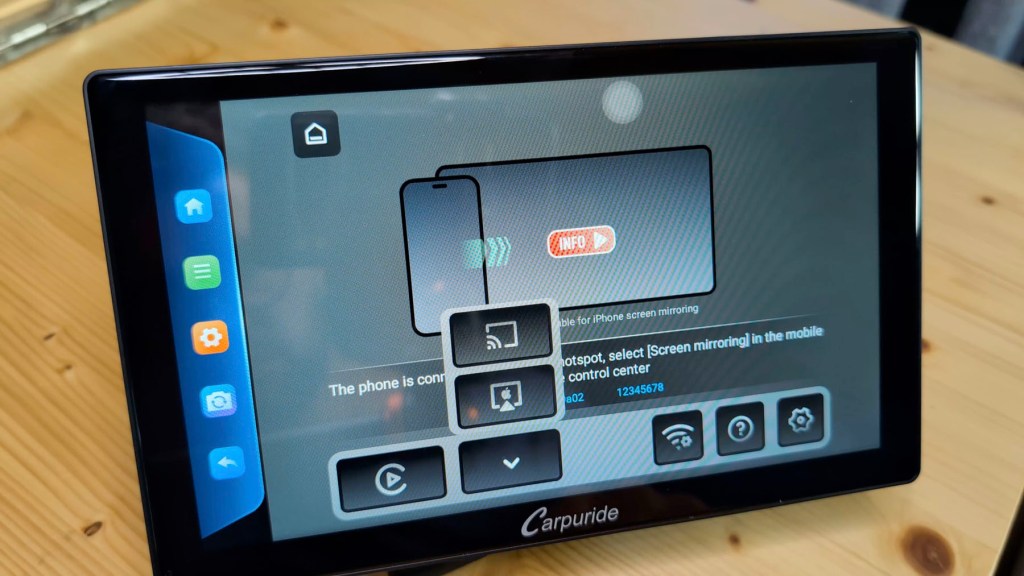
On your phone, go to settings and connect to the Carpuride device via both wifi and bluetooth.
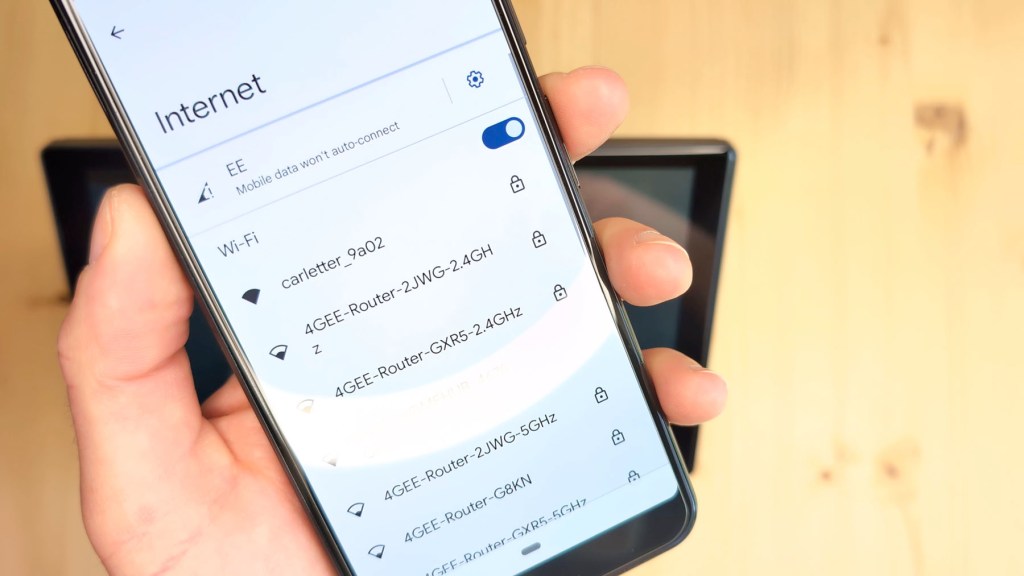
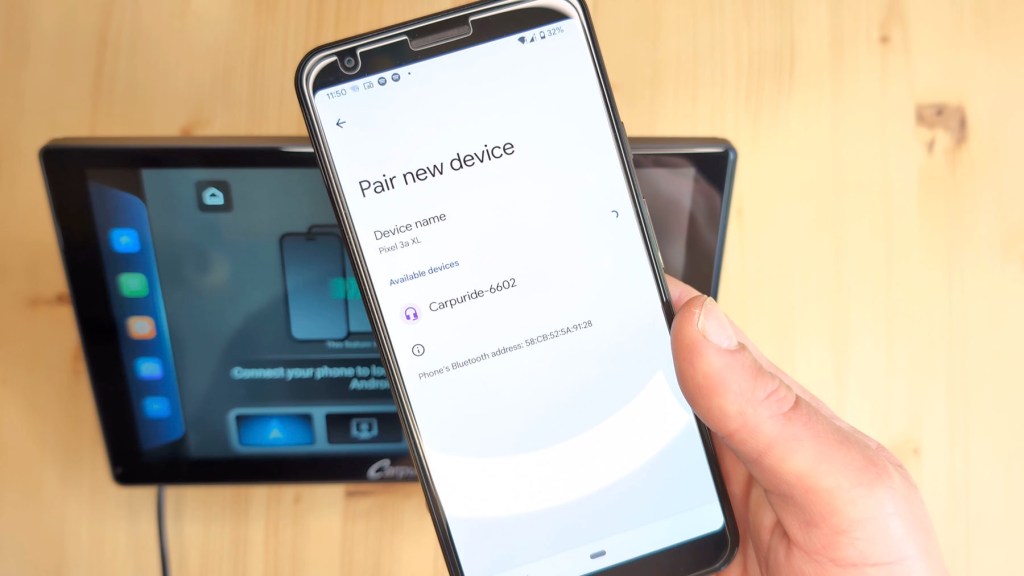
And that’s it, you’re connected!
Once I had my phone connected to the W901 Plus, I connected the phone to the vehicle via bluetooth and I found that the bluetooth steering wheel controls worked straight away with no additional set-up required, whilst the 901 used all the Android Auto features from my phone.
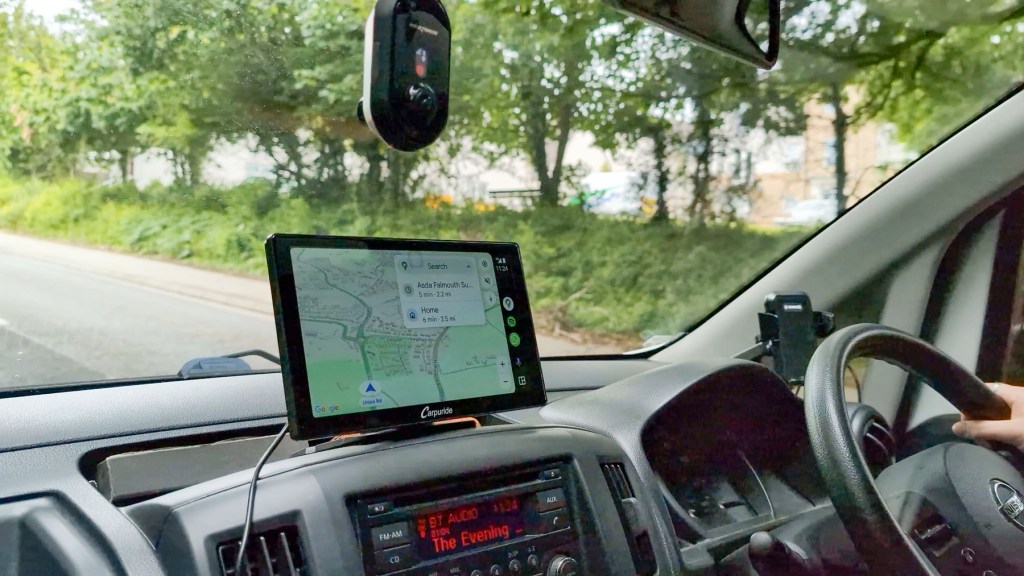
The screen is split between the map and your chosen music platform, with the map, music and call icons along the right hand side of the screen, though you can use the individual apps in full screen which is really nice for navigating or has a clean look for your music player if you don’t need the maps app.
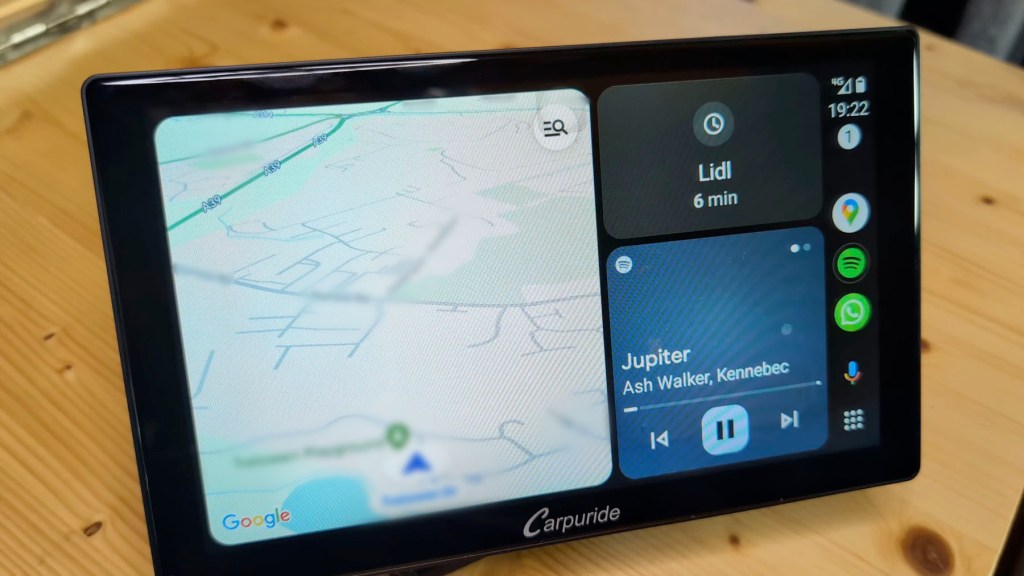
Tap the microphone and you can voice control to ask questions, change music and navigate. At the bottom right is the menu to access the apps, and these are all apps that I have installed on my phone and are compatible with Android Auto.
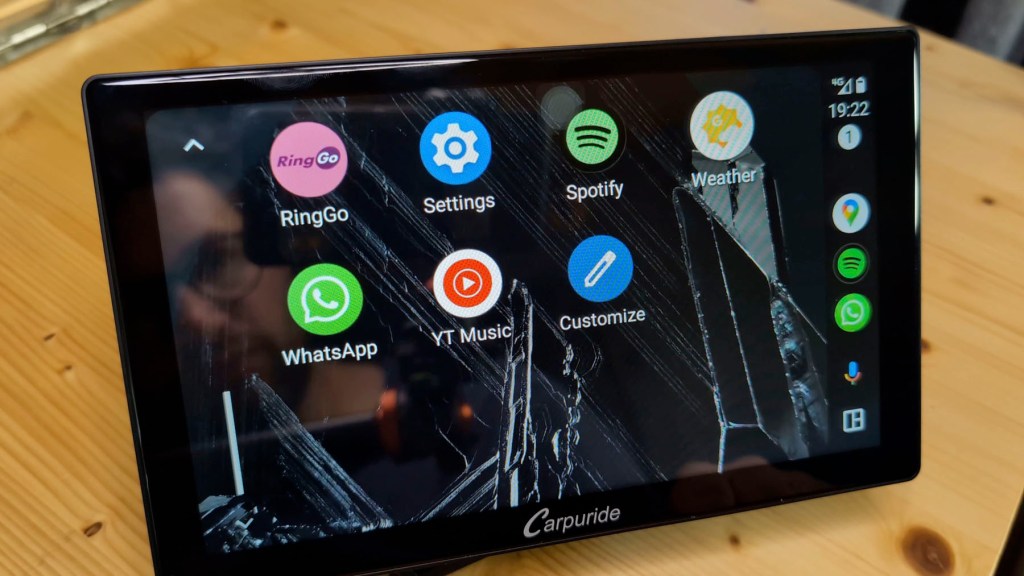
If you scroll down and go into settings, you’ll get Android auto settings, and here you’ll have the option of choosing whether music plays automatically, having dark mode for a maps – an improvement on previous devices, swapping the map and music to different sides of the screen and, if you select ‘see more settings on the phone’ you get a plethora of other settings to adjust on your phone screen.
Going back to the home screen, if you disconnect from Android Auto on your phone and then tap the settings button, you can allow background connections, which will make Android Auto automatically connect when you start your vehicle and high frame rate mode, which gives slightly better motion on the screen, though it doesn’t specify what the frame rates are. Below that is ‘switch to right rudder’ but I can’t see what that changes. It may refer to which side of the vehicle your steering wheel is on.
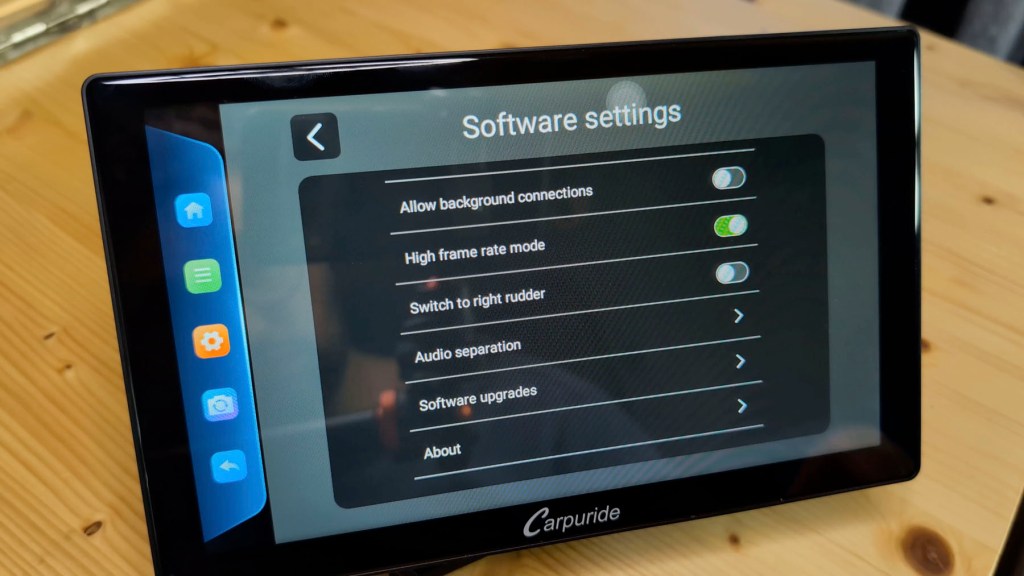
Next is audio separation which, when off, will only play sound through the device and not your vehicle.
Finally you can check for software upgrades if you have a wi-fi network connected and check the device specifications under ‘about’. The only problem with these settings is you can’t change them without disconnecting from Android Auto, but it’s not often that I’d want to fiddle with them.
Attaching The Device In The Van
With all the apps and settings out the way, it’s time to think about attaching the 901 Plus to your dashboard. Simply choose which mount you want to use and where you want to put it and it’s a quick, easy job.
Using the Capuride W901 Plus
To get using the device, plug it in via the provided cable and it’ll power on. To get from off to the home screen it takes half a minute and from off to Android Auto it takesjust under a minute, though this tends to vary and is a bit longer than the 103 Pro.
As mentioned earlier, there are a number of ways to play music from the device and now’s the time to choose your preference.
I’ll definitely be using the bluetooth thanks to the bluetooth projection feature, so I can finally use the van’s steering wheel controls. This is a really great advancement as previously you had to purchase a separate attachment for your steering wheel or use the screen or dashboard to adjust settings, so you’re getting a much better integrated user experience now.
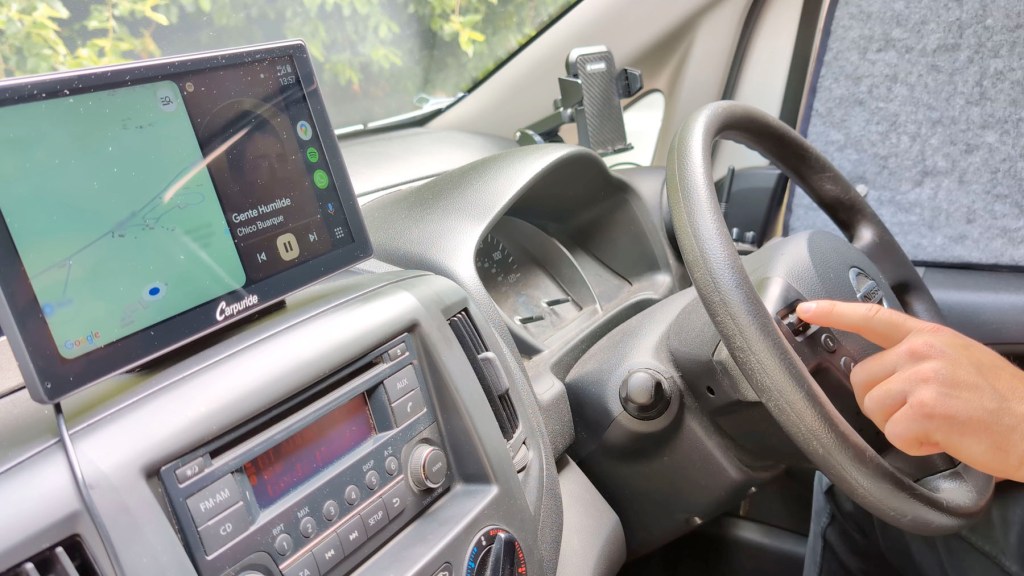
With these types of devices I tend to just use Android Auto for driving but with the ability to watch YouTube, Netflix and other streaming platforms I’ve found a great secondary use for the screen in my van conversion….
By sticking a spare mount to the ceiling, I’m able to have a tilting screen to watch films and tv when I’m away in the van!
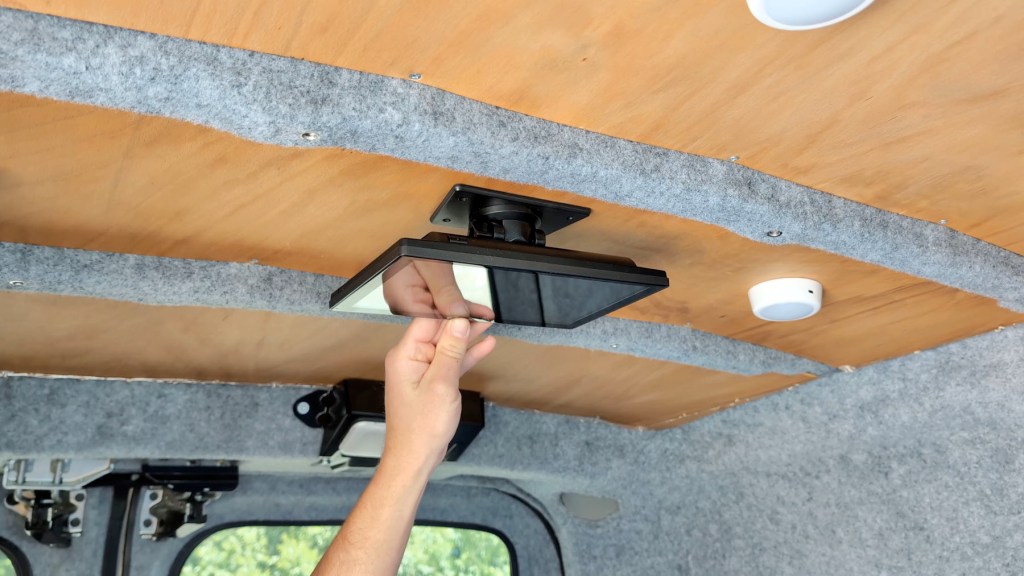

I used it when I went away for 10 days recently and it worked flawlessly – the perfect size for a tiny camper van like this.

How Much Does the W901 Plus Cost?
So how much will the W901 Plus set you back? It’s RRP is £220 but the time of filming it can be picked up for as little as £180.
And don’t forget, if you’d like to buy the 901 Plus or any device for yourself, I’ve got links below and be sure to use discount code “LENSOFJAMES” to get £50 off your order from carpuride.com.
Click to buy your own…
(Affiliate links which help support this blog)
Using the carpuride W901 Plus safely & legally
But before I give my final thoughts, a safety warning – please don’t watch videos on YouTube or Netflix whilst you drive. Theoretically it’s possible to do if you aren’t connected to Android Auto or CarPlay and, whilst it’s a lovely feature to have built into the device, it’s most probably illegal in whatever country you’re watching this from and you’d be putting yourself, your passengers and others at risk.
Should you buy the Carpuride W901 Plus
Overall, there’s no doubt that the Carpuride 901 Plus is a really impressive addition to any car set-up. It’s a stable device which, once set up, works perfectly. The ability to add apps makes it a really versatile device, whilst the bluetooth steering wheel controls and dark modes in maps provides solutions to two of my biggest issues with these types of devices.
Whilst the user interface might need a spell check, it doesn’t affect the experience at all, especially if you intend to use the tried and tested Android Auto or CarPlay systems.
The 901 Plus has lots of settings to play with and I’ve only really scratched the surface in exploring them here, but you really don’t need to go deep into them if that’s not your thing.
At its heart it’s a great plug and play device which will add Android Auto and CarPlay to any vehicle, so I’ll definitely be replacing my Carpuride W103 Pro with the 901 Plus on the dashboard for the foreseeable future.
Thanks for stopping by!

Click to buy your own…
(Affiliate links which help support this blog)
 The Tiny Camper Van